How to deposit funds
 HUB
HUB
-
Log in to the HUB.
-
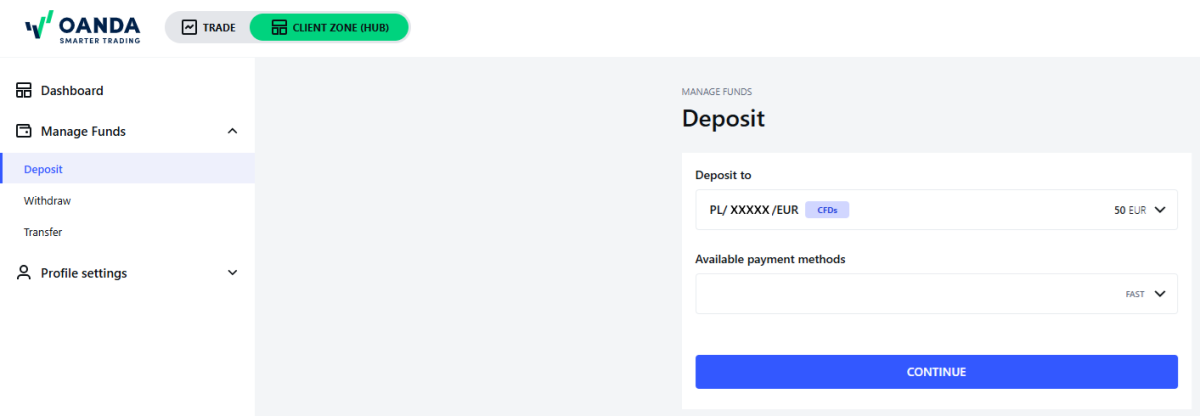
From Manage Funds in the left navigation, click on Deposit.
-
Select the sub-account to which you want to deposit.
-
Select the desired deposit method. Depending on the deposit method, you will be presented with different options:
-
For the debit/credit card:
-
Click on CONTINUE
-
Enter the desired deposit amount
-
Click on DEPOSIT FUNDS
-
Follow the instructions on the new page.
Due to regulatory reasons, clients from Belgium and Spain cannot deposit funds via debit/credit card.
-
-
For TrueLayer:
-
Click on CONTINUE
-
Enter the desired deposit amount
-
Click on DEPOSIT FUNDS
-
If the information shown on the screen is correct, click on CONFIRM AND CONTINUE
-
Follow the instructions on the new page.
-
-
For the bank transfer and MBank (available only for clients from Poland):
-
Click on CONTINUE
-
You will see the information required to make a transfer from your bank account.
-
-
For iDEAL (available only for clients from the Netherlands):
-
Click on CONTINUE
-
Enter the desired deposit amount
-
Click on DEPOSIT FUNDS
-
If the information shown on the screen is correct, click on CONFIRM AND CONTINUE
-
Follow the instructions on the new page.
-
-
For Autopay, BLIK and Przelewy24:
-
Click on CONTINUE
-
Enter the desired deposit amount
-
Click on DEPOSIT FUNDS
-
If the information shown on the screen is correct, click on CONFIRM AND CONTINUE
-
Follow the instructions on the new page.
This method is available only for clients from Poland.
-
Clients from Poland can also deposit through this page. -
Mobile app
-
Log in to the mobile app.
-
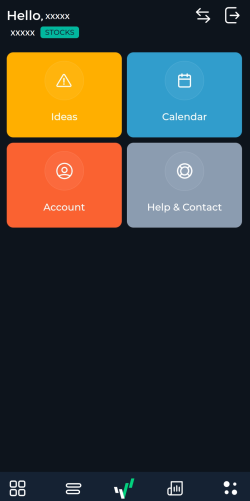
Tap on the four dots icon at the bottom.
-
Tap on Account.
-
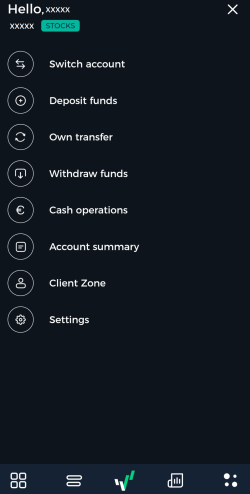
Tap on Deposit funds.
-
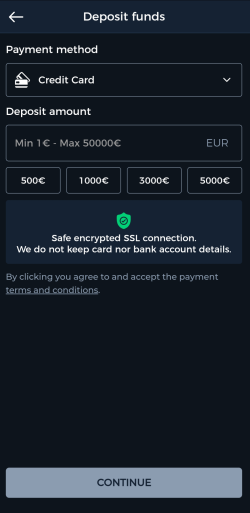
Select the payment method and enter the deposit amount. Next, tap on CONTINUE.
-
Follow the instructions on the new page to finish the deposit.