Passkey
 What is a passkey?
A passkey is a digital credential that allows you to log in to the HUB, OANDA's trading platforms, and TradingView without entering your OANDA email address and password. You can use passkeys to replace the traditional login method that requires a password.
How a passkey works
Think of a passkey like a digital lock and key made specifically for each website you use.
-
The Lock: The website keeps the lock.
-
The Key: Your phone or computer keeps the secret key.
When you want to log in, the website sends a locked box to your device. Your device unlocks it automatically, but only after you prove it's really you using your face, fingerprint, or device PIN.
HUB, OANDA platforms, and TradingView
A passkey for these platforms is managed directly within the HUB portal. Once a passkey is set up, you can use it every time you log in to either the HUB, OANDA platforms, or TradingView, ensuring your account information and trading activity are secure.
MetaTrader platforms
For MetaTrader platforms, a passkey is not currently supported.
What are the passkey benefits?
The following list shows the key benefits of using a passkey:
-
Phishing resistance: Passkeys are cryptographically tied to the specific domain they were created for. That is why you cannot accidentally give your passkey to a fake or malicious website.
-
Seamless experience: There is nothing to remember. Log in to your account with a passkey using your biometrics or a device PIN.
-
Cross-device syncing: Cloud-based password managers, such as Google Password Manager, securely synchronise passkeys across your devices, ensuring login from any device.
Is a passkey mandatory?
No, a passkey is an optional login method.
How to set up a passkey
What are the recommendations for creating a first passkey?
We recommend saving your first passkey on a mobile device to create a portable master key and ensure cross-device compatibility. We also recommend backing up the passkey to a cloud-based password manager, such as Google Password Manager. This ensures that you can sync the passkey across your devices.
How to create the first passkey
You can create your first passkey directly on your mobile device or through your computer. Select one of the following options and follow the steps:
Mobile device
-
Log in to the HUB with your email address and password.
-
If the demo and live account email addresses are different, use your respective credentials to sign in to the required account.
-
If the demo and live account email addresses are the same, your accounts are linked. You must use the live account password to sign in.
-
Remember that your password is case-sensitive and may include numbers and special characters.
-
-
If you have the two-factor authentication (2FA) enabled, enter the code from the authenticator app.
-
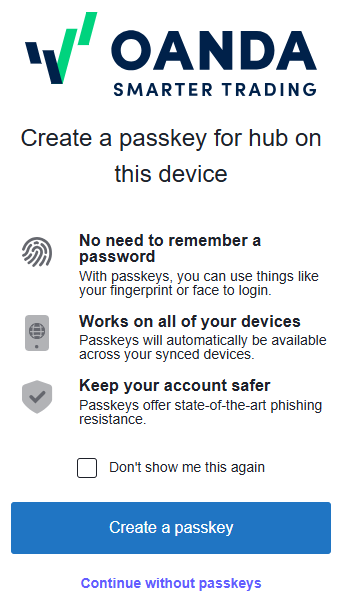
A new window appears to create a passkey.
-
Tap on Create a passkey.
-
If you tap on Continue without passkeys, you will be directed to the HUB. To reinitiate the passkey setup, log out of the HUB and go to step 1.
-
If you check the Don't show me this again box, you will be able to see this window in 30 days.
-
-
A new window appears to save a passkey. Continue with your preferred authentication method, for example, your fingerprint.
-
Once your passkey is successfully saved, you will be redirected to the HUB.
Computer
-
Log in to the HUB with your email address and password.
-
If the demo and live account email addresses are different, use your respective credentials to sign in to the required account.
-
If the demo and live account email addresses are the same, your accounts are linked. You must use the live account password to sign in.
-
Remember that your password is case-sensitive and may include numbers and special characters.
-
-
If you have the two-factor authentication (2FA) enabled, enter the code from the authenticator app.
-
A new window appears to create a passkey.
-
Tap on Create a passkey.
-
If you tap on Continue without passkeys, you will be directed to the HUB. To reinitiate the passkey setup, log out of the HUB and go to step 1.
-
If you check the Don't show me this again box, you will be able to see this window in 30 days.
-
-
Click on Use a phone, tablet, or security key.
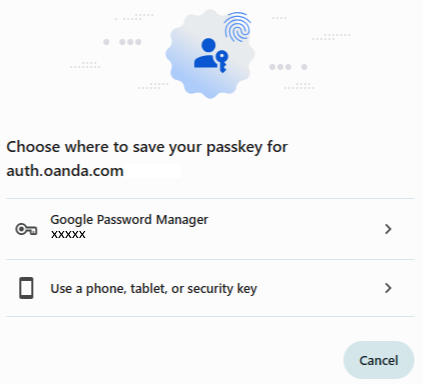 Do not use the Google Password Manager option in this step.
 -
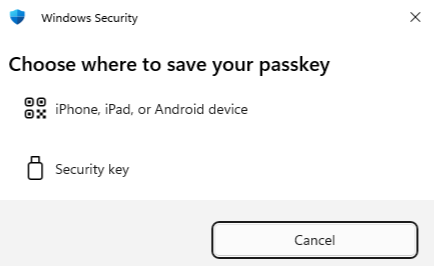
Click on iPhone, iPad, or Android device.
-
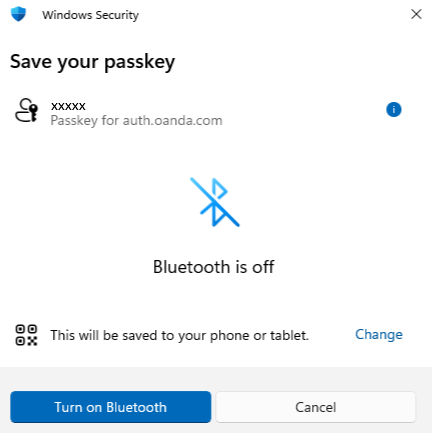
If Bluetooth on your computer is turned off, click on Turn on Bluetooth.
-
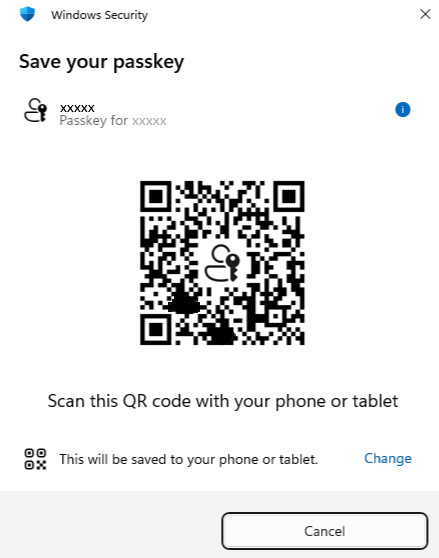
Open a scanner app on your mobile device and scan the QR code.
-
If Bluetooth on your mobile device is turned off, you need to turn it on.
-
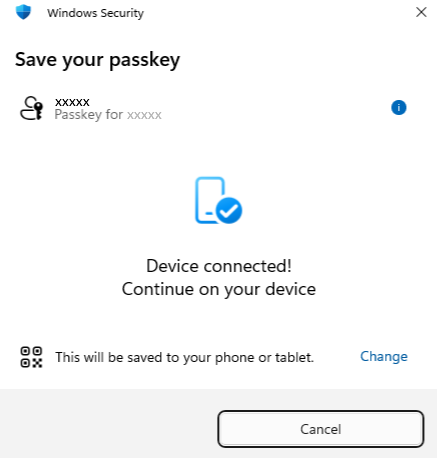
Once your mobile device is successfully connected, you will see a confirmation message on your computer.
-
On your mobile device, a new window appears to save a passkey. Continue with your preferred authentication method, for example, your fingerprint.
-
Once your passkey is successfully saved, you will be redirected to the HUB.
How to log in if a passkey is created
Depending on the device type, the login process differs. Select one of the following options and follow the steps:
Mobile device
-
Go to the HUB.
-
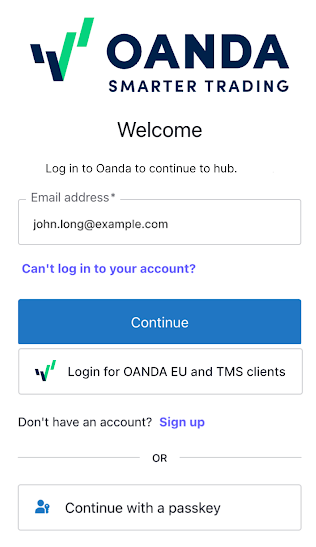
Click on Continue with a passkey.
-
On your mobile device, a new window appears. Continue with your preferred authentication method, for example, your fingerprint.
-
Once you have been successfully authenticated, you will be redirected to the HUB.
Computer
-
Go to the HUB.
-
Click on Continue with a passkey.
-
Depending on where you have your passkey saved, select one of the following options and follow the steps:
Google Password Manager
-
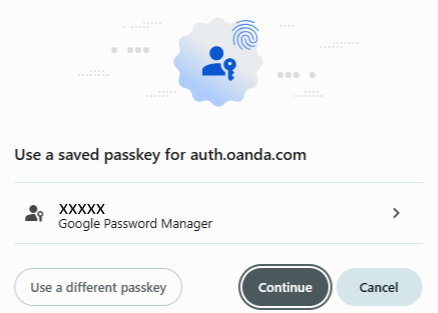
Click on Google Password Manager.
-
You will be directed to the HUB.
Use a different passkey
-
Click on Use a phone, tablet, or security key.

-
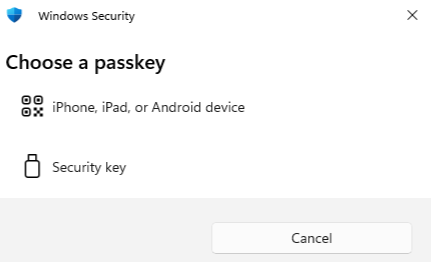
Click on iPhone, iPad, or Android device.
-
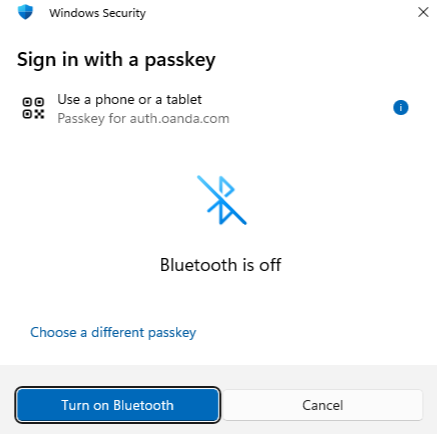
If Bluetooth on your computer is turned off, click on Turn on Bluetooth.
-
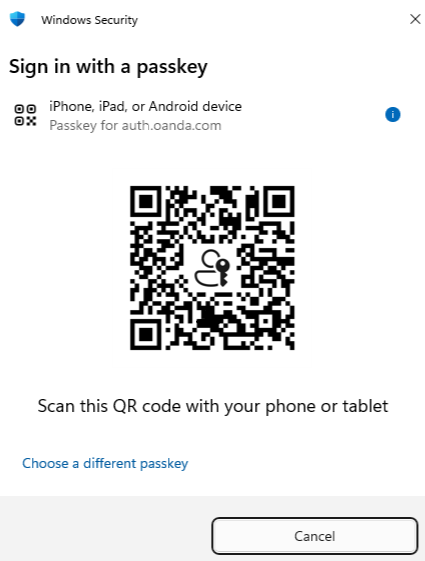
Open a scanner app on your mobile device and scan the QR code.
-
If Bluetooth on your mobile device is turned off, you need to turn it on.
-
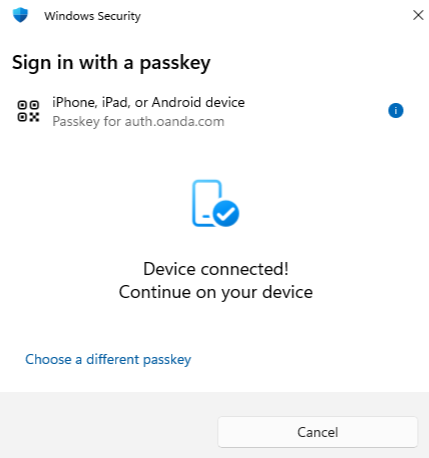
Once your mobile device is successfully connected, you will see a confirmation message on your computer.
-
On your mobile device, a new window appears. Continue with your preferred authentication method, for example, your fingerprint.
-
Once you have been successfully authenticated, you will be redirected to the HUB.
How to create additional passkeys
Mobile device
The process is exactly the same as creating your first passkey.
Computer
To create an additional passkey on a computer, follow these steps:
-
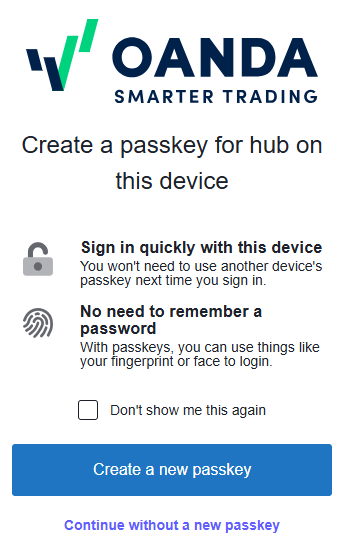
After successfully logging in with your passkey on a computer, a new window appears to create a new passkey.
-
Click on Create a new passkey.
-
If you tap on Continue without passkeys, you will be directed to the HUB. To reinitiate the passkey setup, log out of the HUB and go to step 1.
-
If you check the Don't show me this again box, you will be able to see this window in 30 days.
-
-
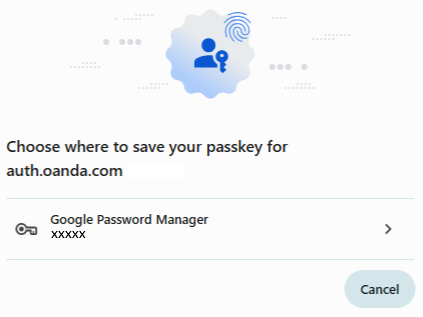
Click on Google Password Manager.
-
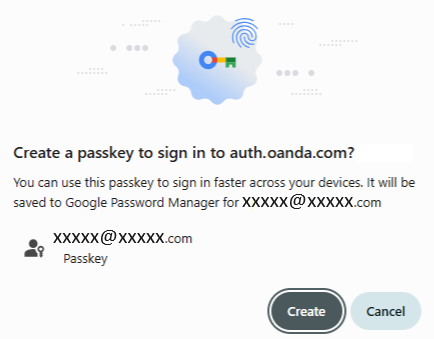
Click on Create.
-
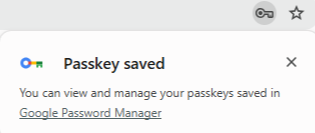
If your new passkey has been successfully created, you will see a confirmation window.
How to deactivate a passkey
-
Log in to the HUB with your email address and password.
-
If the demo and live account email addresses are different, use your respective credentials to sign in to the required account.
-
If the demo and live account email addresses are the same, your accounts are linked. You must use the live account password to sign in.
-
Remember that your password is case-sensitive and may include numbers and special characters.
-
-
If you have the two-factor authentication (2FA) enabled, enter the code from the authenticator app.
-
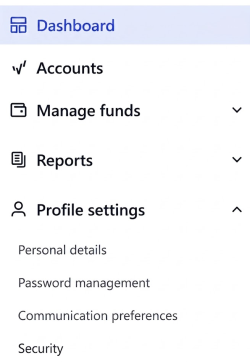
Under Profile settings in the left navigation, click on Security.
-
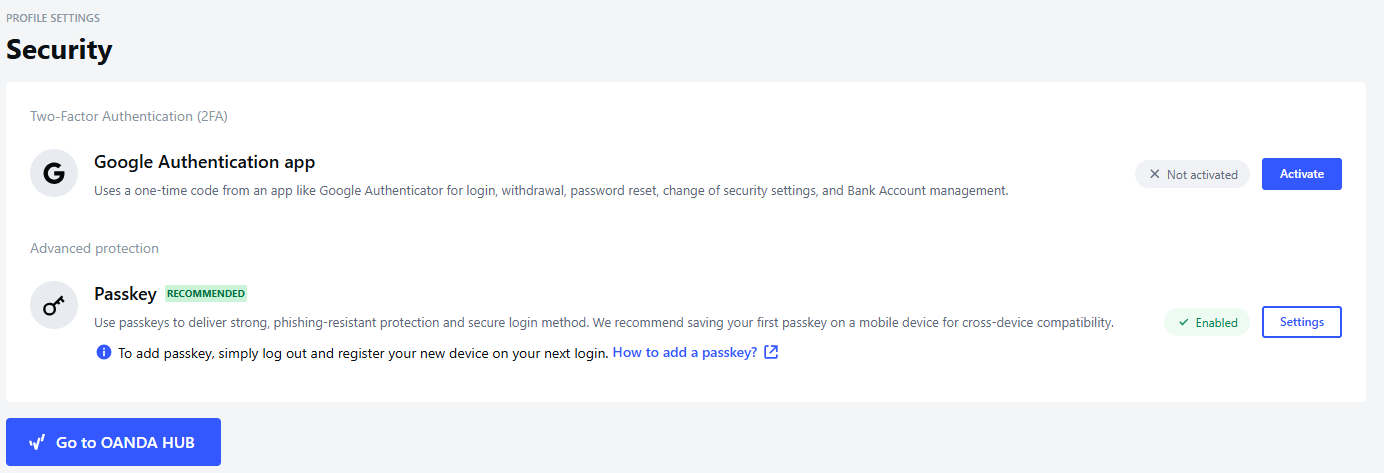
Within Passkey, click on Settings.
-
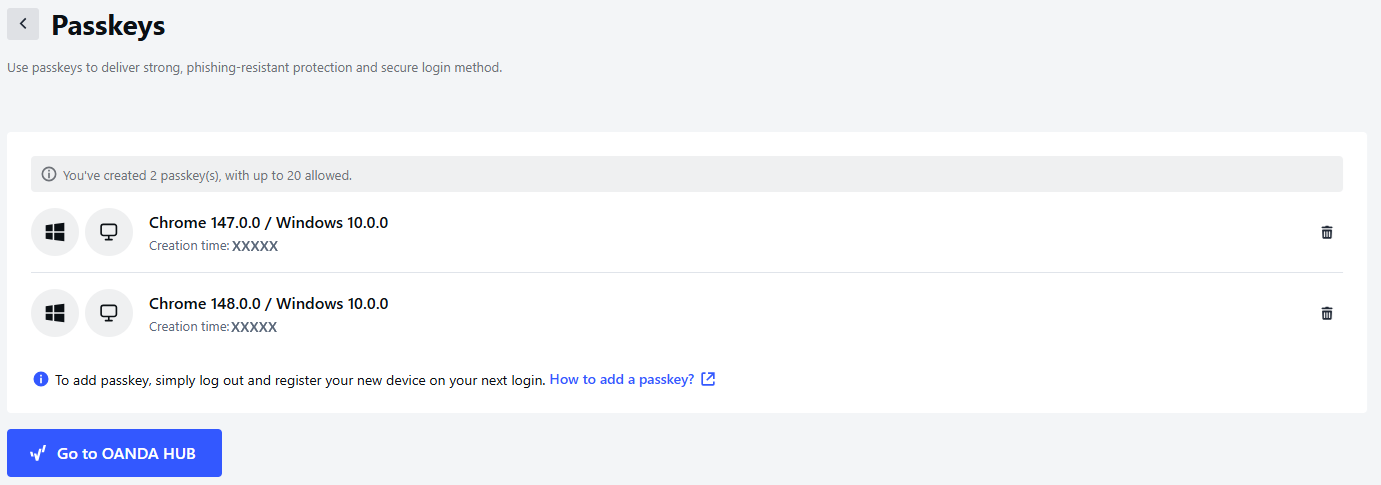
Select the desired passkey you want to deactivate. Then, click on the bin icon next to it.
-
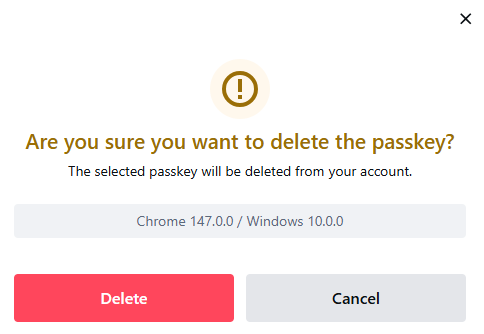
A new window appears. Click on Delete.
-
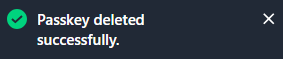
If your passkey has been successfully deleted, you will see a confirmation window.
How many passkeys can I create?
You can create a maximum of 20 passkeys for your OANDA account.
What to do if I cannot log in with a passkey?
Just log in using your standard OANDA account email address and password. If you have forgotten your password, refer to the steps on how to reset it in this topic.
What to do if I have lost the device on which I saved the passkey?
If you no longer have the device that holds your passkey, you still have a few ways to access your account. Choose one of the following options that works best for you:
Use a backup device: If you have passkeys saved on other devices (like a tablet or secondary phone), you can use one of them to log in.
Sync from the cloud: If you have used a cloud-based password manager (like Google Password Manager) on your lost device, you can simply log into that same cloud account on a new device. Your passkey will sync, allowing you to log in.
Use your email and password: Just log in using your standard OANDA account email address and password.
Important security step: Once you have successfully logged in, deactivate the passkey for the device you no longer have. This ensures your account remains secure.