If your question relates to how to use a specific platform feature, refer to our MT5 user guide.
The following FAQs are some common issues and solutions to problems users often encounter when using the MT5 platform:
 How can I install MT5 on my Mac computer?
Refer to the official guide on how to install MT5 on Mac computers, written by MetaQuotes Software Corp.
How to reset your live MT5 account password
To reset your live MT5 account password, refer to this topic.
I don't see my assigned MT5 server on the login window
To refresh your MT5 server list, refer to this topic.
'Invalid account' error message
The MT5 platform will display the Invalid account error message in the Journal tab under Toolbox if you have entered the incorrect login, password or server.
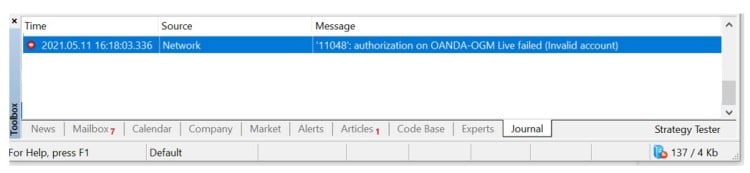
To resolve the issue, follow these steps:
- Double-check your login ID and assigned server.
- If your login ID and server are entered correctly, reset your MT5 account password before logging in again.
'No connection' error message
The MT5 platform will display the no connection error message in the Journal tab under Toolbox if you have entered the incorrect server or if your platform server list needs to be refreshed.
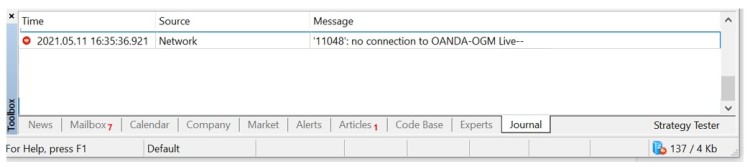
To resolve this issue, refresh your server list and log in again.
‘Off quote error’ message
The MT5 platform will display the Off quote error message if there is an issue with the order you have tried to place.
To see why your order was rejected, check the Journal tab for details by following these steps:
-
Click on the Journal tab in Toolbox.
-
You can see detailed reasons in the most recent messages.

How to resolve ‘trading has been disabled - disabled on server’ issue
The MT5 platform may display the trading has been disabled - disabled on server error message in the Journal tab of the Toolbox section.
If your account balance is 0 or there has not been any trading activity registered for some time, trading in your account is automatically disabled and an error message is shown. This error has no other practical effects on the functionalities of your MT5 trading account. As soon as your account balance goes over 0, trading in your account will be automatically enabled.
My connection speed is slow
-
In the bottom-right corner, check your connection speed.

-
Rescan the connections by clicking on the connection speed icon and check if you can connect to alternative access servers.
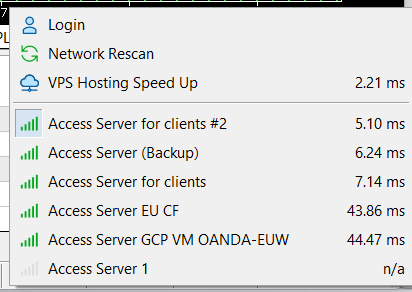
-
Try to log in to your account via the MT5 mobile app or MT5 web platform at the same time.
-
Check if you use a VPN or VPS to connect to our servers:
-
If no, go to step 3
-
If yes, disable your VPN or VPS and repeat step 1. Once done, go to step 3.
-
-
Open your trade terminal in your standard configuration and do a CPU load assessment:
-
Open Task Manager (for Windows) or Activity Monitor (for Mac) and locate the application you use to connect to our servers.
If you use a web app, close the open tabs in your browser not directly related to the trading platform. -
Check the CPU usage:
-
MT5 with no active indicators should have the CPU usage of approximately 1% or less
-
MT5 with 4 selected native indicators should have the CPU usage of approximately 3% or less.
The above CPU usage is our estimation. We cannot guarantee that the usage will be the same on every computer. -
-
-
Check if you have any EA’s (Expert Advisors) or custom indicators active:
-
If no, send us the MT5 platform log for further investigation
-
If yes, close all the charts with EA’s or custom indicators, open new charts with no EA’s or custom indicators and repeat step 3:
-
If the CPU usage decreased, check how your custom indicators impact terminal performance
-
If the CPU usage did not change, send us the MT5 platform log for further investigation.
-
A custom indicator is a technical analysis tool created by a community member, not OANDA or MetaQuotes, using the MQL5 programming language. Custom indicators, such as a custom moving average with specific calculation rules, can be downloaded from the Market tab in the desktop application. -
How to submit the MT5 platform log for further investigation
In the event of a technical issue on your platform that cannot be resolved, send the MT5 platform log to us for further investigation. To retrieve and send us the log, follow these steps:
-
Click on File
-
Click on Open Data Folder
-
Double-click on logs
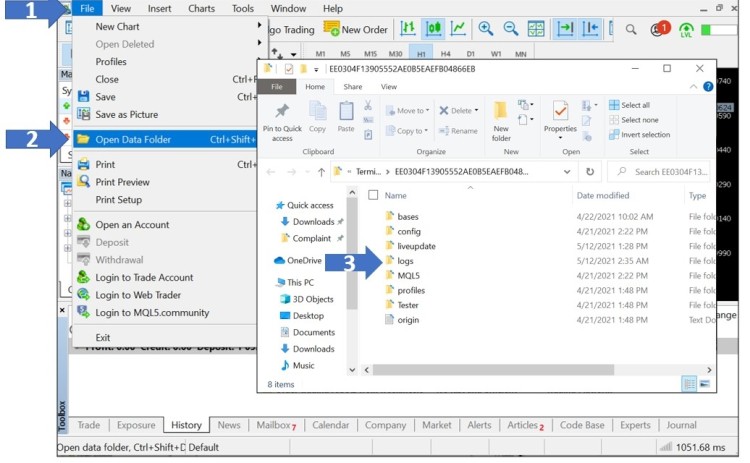
-
The log file names are dates. Locate the required log file (based on the date on which the issue occured).
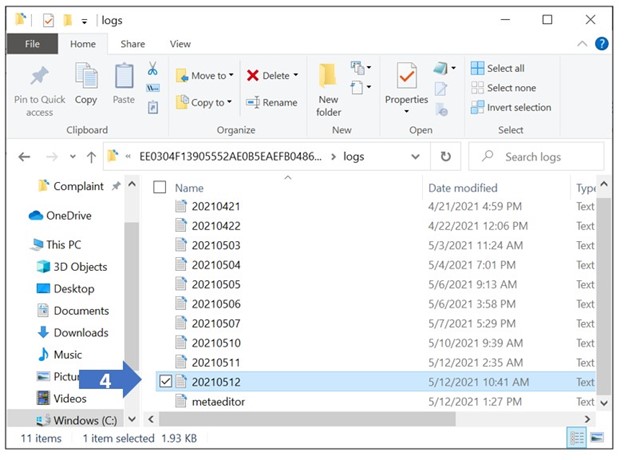
-
Email us using the subject line MT5 platform log. Write a detailed description of the issue with steps to reproduce it, and attach the copy of your log file for further investigation.