How to log in
 How can I log in to the HUB?
-
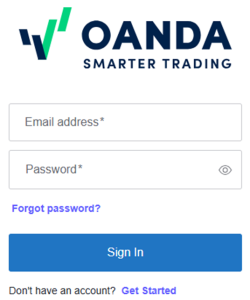
On the HUB’s login page, enter the email address and password associated with your OANDA TMS account.
-
Click on Sign In.
How can I reset or change my live HUB account password?
If you do not remember your password
-
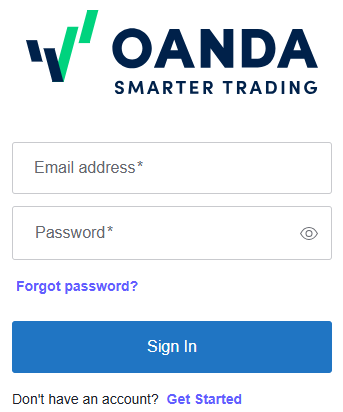
On the HUB’s login page, click on Forgot password?.
-
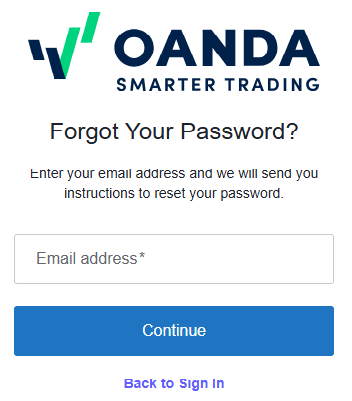
Enter the email address associated with your OANDA TMS account and click on CONTINUE.
-
We will send an email to the provided email address. If you do not receive the email, check your junk mail folder.
-
Click on Reset password in the email.
-
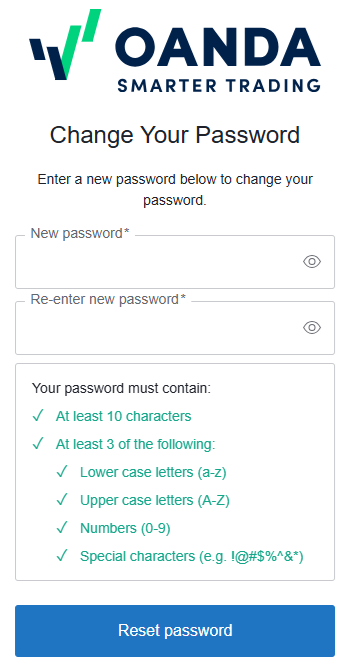
Enter the new password and click on Reset password.
 The new password will apply to all your live and demo accounts.
 -
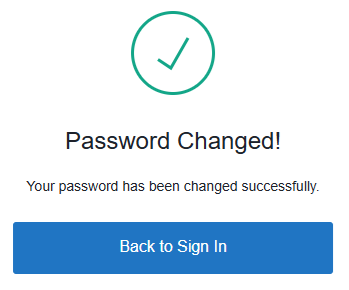
If you have successfully reset the password, you can see a confirmation window.
If you remember your password
-
Log in to the HUB.
After 5 failed login attempts, you must wait for 180 minutes before you try to log in again. The countdown will show you the remaining time. Alternatively, you can reset your password. -
From Profile settings in the left navigation, click on Passwords and security.
-
Click on Change the password.
-
Enter the current and new password and click on SAVE THE NEW PASSWORD.
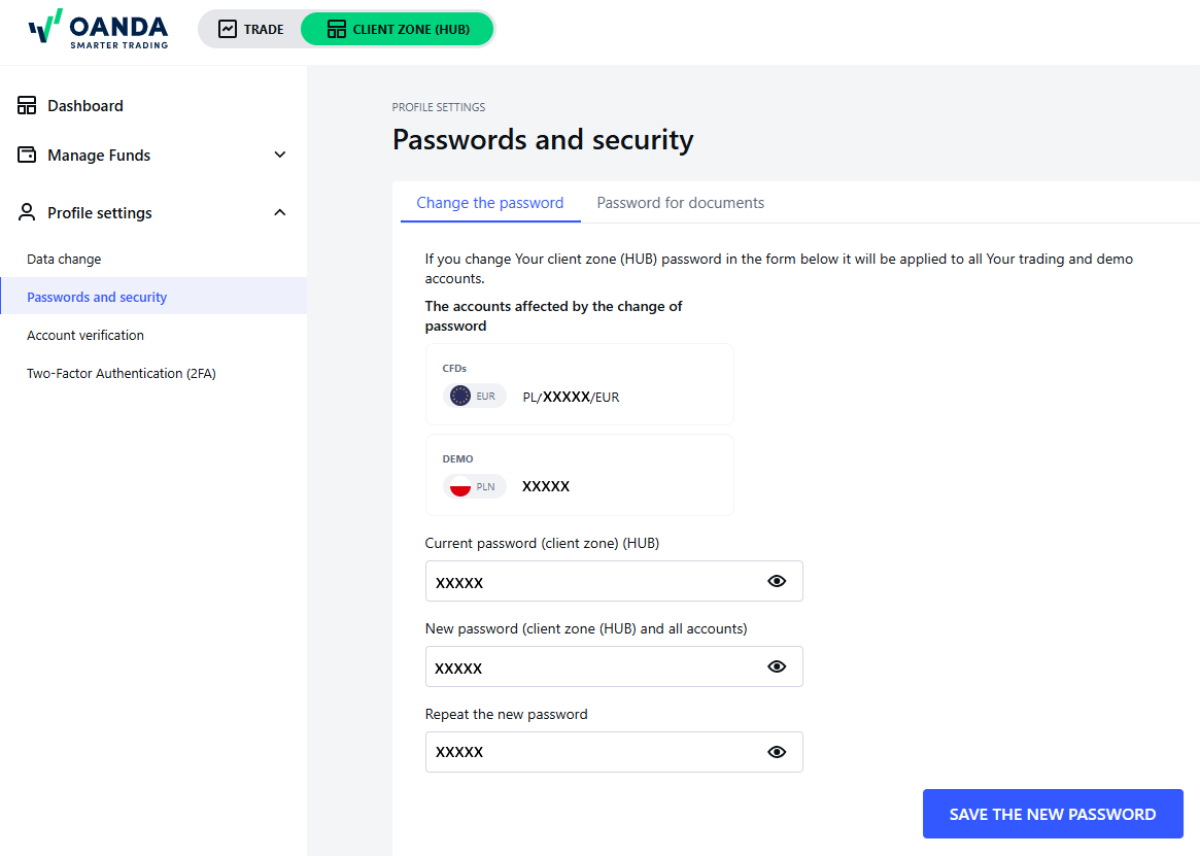 The new password will apply to all your live and demo accounts.
My live account has been blocked due to multiple failed login attempts
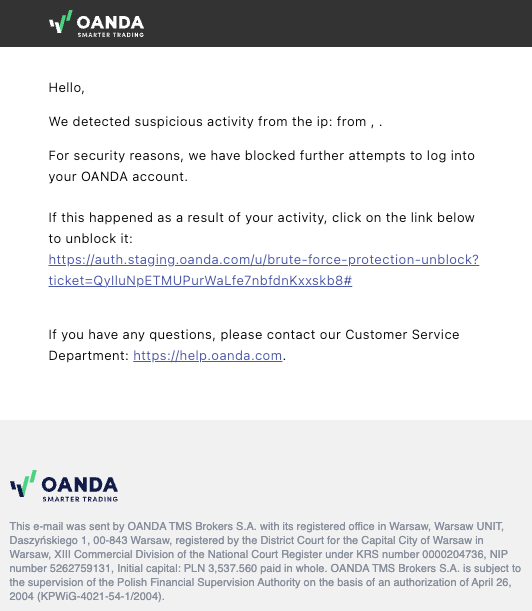
Multiple failed login attempts can block your account. When that happens, you will get an email to unblock your account. In the email, click on the link to unblock your account.
I can’t log in to the HUB or the OANDA mobile app despite password resets
There are a number of reasons why that can happen:
-
If we observe suspicious activity in your account, we may lock it for security reasons.
-
If you have not used your account in a long time, we might close your account for security reasons.
Contact us for guidance on the next steps.
How can I log in to the MetaTrader 5 platforms?
Live account credentials
-
Login ID: To find your MT5 login, refer to this topic.
-
Password: It is the password you received in the welcome SMS upon account registration or the password you changed thereafter. If you have forgotten your password, refer to this topic.
-
Server: OANDATMS-MT5
Steps to log in
MT5 desktop
-
Open OANDAMT5.
-
Click on File located in the top left corner of the platform.
-
Click on Login to Trade Account.
-
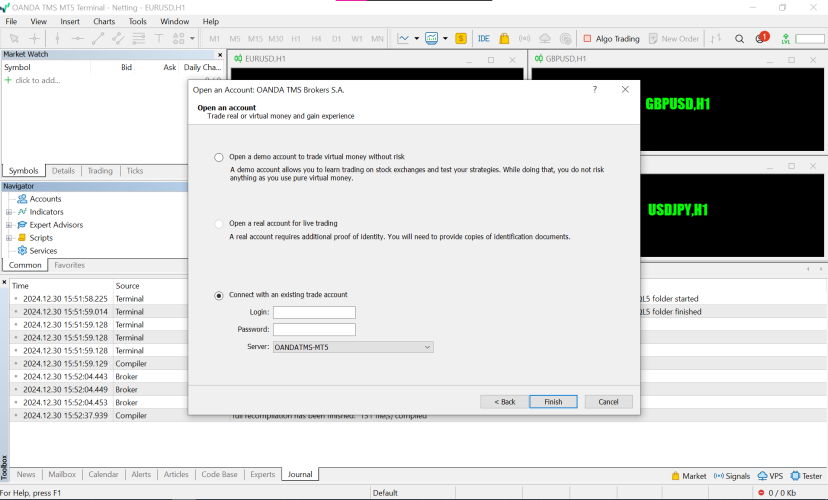
Enter your login, password and assigned server.
-
For the login process after activating two-factor authentication (2FA), refer to this topic.
MT5 web
-
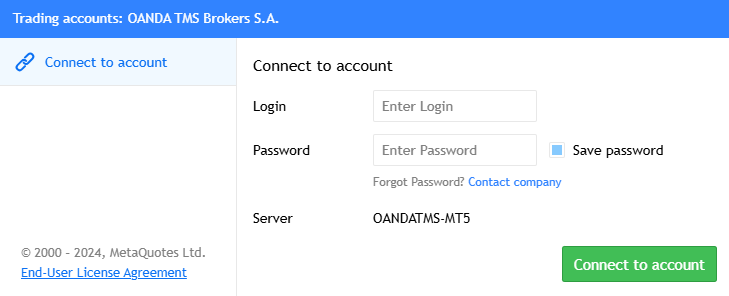
Enter your login, password and assigned server.
-
For the login process after activating two-factor authentication (2FA), refer to this topic.
MT5 mobile
-
If you start the application for the first time, you will be prompted with the option to create an MT5 demo account. Close the window.
-
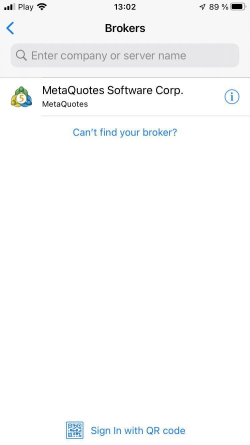
Enter OANDA in the Brokers search box and select OANDA TMS Brokers S.A
-
Log in with your credentials.

-
For the login process after activating two-factor authentication (2FA), refer to this topic.
How can I reset or change my live MetaTrader 5 account password?
If you do not remember your password
-
On the HUB’s login page, click on Forgot password?.
-
Enter the email address associated with your OANDA TMS account and click on CONTINUE.
-
We will send an email to the provided email address. If you do not receive the email, check your junk mail folder.
-
Click on Reset password in the email.
-
Enter the new password and click on Reset password.
The new password will apply to all your live and demo accounts. -
If you have successfully reset the password, you can see a confirmation window.
If you remember your password
-
Log in to the HUB.
After 5 failed login attempts, you must wait for 180 minutes before you try to log in again. The countdown will show you the remaining time. Alternatively, you can reset your password. -
From Profile settings in the left navigation, click on Passwords and security.
-
Click on Change the password.
-
Enter the current and new password and click on SAVE THE NEW PASSWORD.
The new password will apply to all your live and demo accounts.
What should I do if I see the ‘Invalid account’ error message on MetaTrader 5?
The MT5 platform will display the Invalid account error message in the Journal tab under Toolbox if you have entered the incorrect login, password or server.
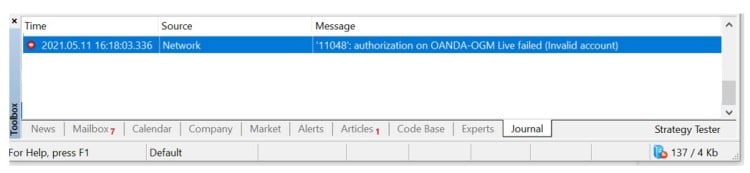
To resolve the issue, follow these steps:
- Double-check your login ID and assigned server.
- If your login ID and server are entered correctly, reset your MT5 account password before logging in again.
How can I log in to the TradingView platform?
-
Go to the TradingView website and log in with your TradingView account credentials.
-
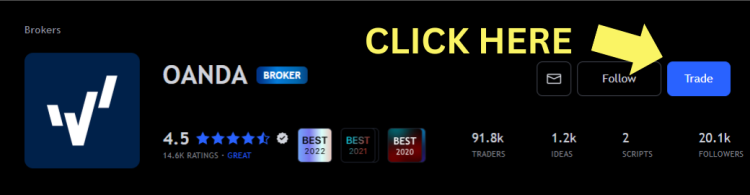
Navigate to the OANDA broker page.
-
Select TRADE near the right-hand side of the screen.
-
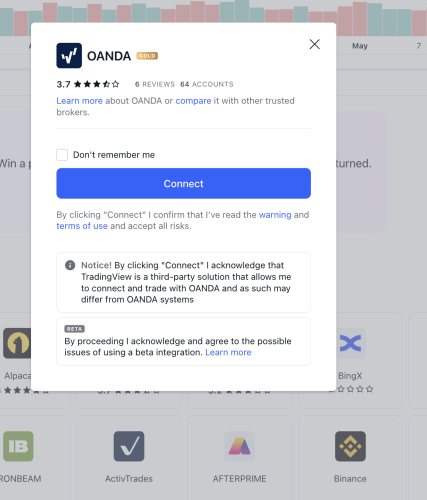
Click on Connect.
-
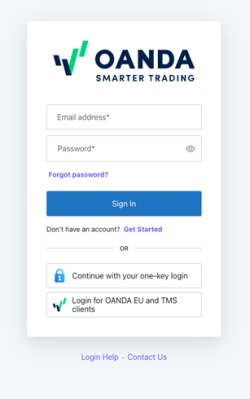
Click on Login for OANDA EU and TMS clients to connect with your OANDA TMS account. Enter your OANDA email address and password. Next, click on Continue.
-
After activating two-factor authentication (2FA), enter the code from the authenticator app.
-
Go to Products > Supercharts.
You will notice OANDA at the bottom of the screen.

Can I use the API on my live or demo account?
The API functionality is currently not available for OTMS clients. This means that requesting an API token is not supported. However, you can set up your MT5 for algo trading with AI tools.